Standalone Runtime
Synra Local AI Assistant
Download Synra from GitHub for a standalone companion AI runtime that can run locally on Jetson Orin Nano, work beside NodeSparkHub, and connect to configured Home Assistant paths.
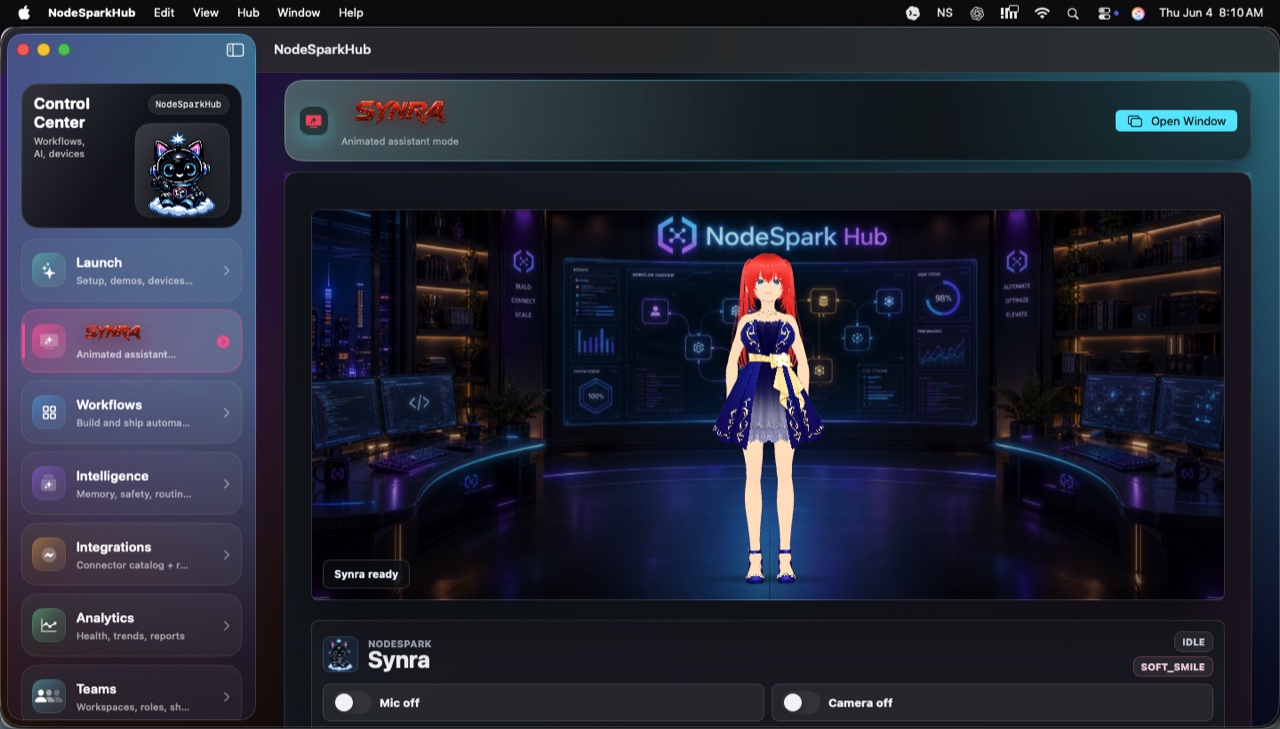
NodeSpark, NodeSparkHub, and Synra work together as the flagship Synryzen automation ecosystem.
Why this matters
Standalone assistant
Use Synra as a focused avatar assistant for conversation, speech, memory, local preferences, model routing, and automation guidance.
Jetson Orin Nano runtime
Deploy Synra as a local kiosk companion with cached VRM/VRMA assets, adaptive rendering, and a local same-origin API server.
NodeSpark + Home Assistant bridge
Pair Synra beside NodeSparkHub and configured Home Assistant paths while keeping workflow runs and smart-home actions confirmed.
How to think about the workflow
- Download Synra from the GitHub project.
- Build and install it on the target machine, or deploy it as a Jetson kiosk runtime.
- Choose a local or cloud OpenAI-compatible model endpoint.
- Connect NodeSparkHub and Home Assistant only when you want those integrations enabled.
- Use Synra to explain, draft, monitor, and confirm automation work.
Standalone assistant
Synra has its own runtime surface.
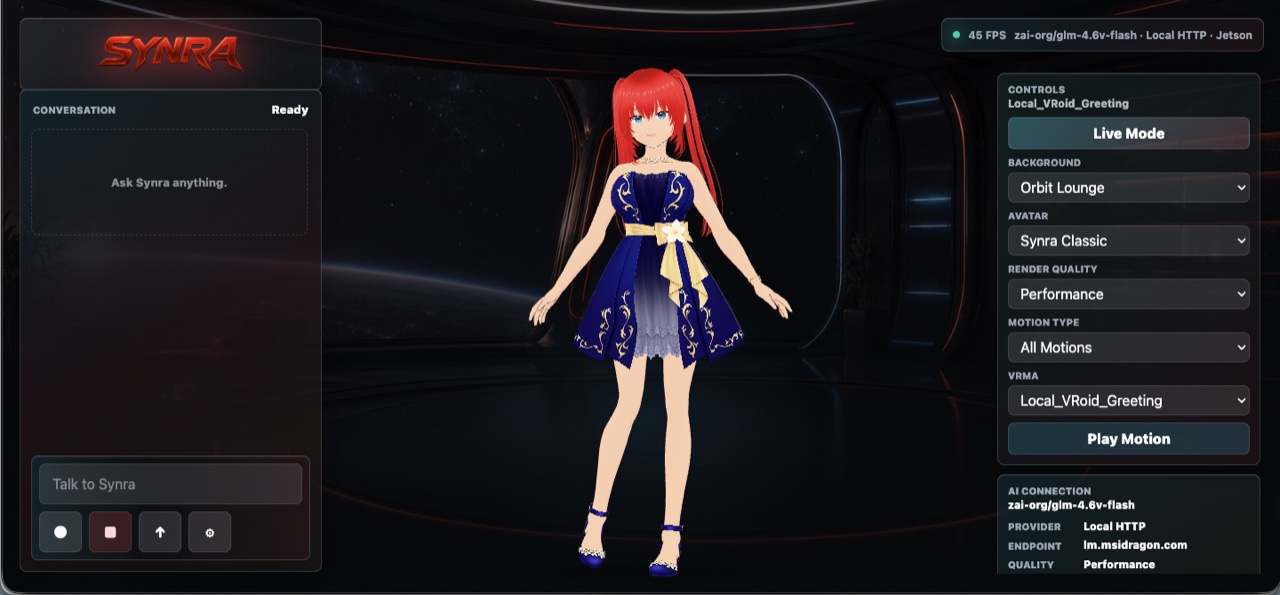
The standalone Synra view shows the avatar, conversation panel, model status, local provider path, and runtime controls in one focused workspace.
Jetson Standalone Runtime
Synra can run as a local AI companion on Jetson Orin Nano.
Synra Standalone is built as a lean local assistant surface: the avatar, conversation panel, model status, speech controls, memory, smart-home tools, and optional NodeSpark integration without carrying the full workflow-builder UI onto the device.
Jetson kiosk install
Install Synra from the GitHub project, build the Vite/TypeScript app, run the same-origin Synra server as a user service, then launch Chromium in kiosk mode against the local Synra URL. Jetson mode uses cached avatar and motion assets, a 30 FPS target, adaptive rendering, and lighter visual settings for reliable appliance-style use.
Local or cloud model path
Synra talks to an OpenAI-compatible endpoint, so advanced users can point it at local model servers such as Ollama or LM Studio-style endpoints, or a cloud-compatible provider. Direct commands can bypass the model for faster status, settings, and control responses.
Safe standalone boundary
Synra Standalone does not replace NodeSpark or NodeSparkHub. It is the companion runtime: conversation, avatar state, local preferences, model routing, smart-home tools, and optional integrations stay separate from workflow editing and Hub execution.
Connected Automation
How Synra works with NodeSparkHub and Home Assistant.
NodeSparkHub pairing
When paired with NodeSparkHub, Synra becomes the assistant surface for the automation system. It can help explain workflows, draft workflow plans, check Hub status, summarize recent runs, and request confirmation before any real workflow action is sent to the Hub.
Home Assistant bridge
Synra can connect to a configured Home Assistant URL and token, discover supported targets such as lights, switches, scenes, scripts, and input booleans, then map friendly names to the right devices or scenes.
Confirmation before control
Smart-home changes are treated as permissioned tool actions. Synra can prepare the action and explain what will happen, but sensitive device changes remain behind an explicit confirm-or-cancel step. Tokens and raw secrets are never shown in status output.
Example workflows
- Run Synra full-screen on a Jetson Orin Nano as a local assistant station for voice, chat, avatar presence, model status, and smart-home readiness.
- Ask Synra to explain what a NodeSpark workflow does before you run it from NodeSparkHub.
- Draft a workflow plan from a plain-language automation idea, then decide whether it belongs in NodeSpark or needs Hub scheduling.
- Connect Home Assistant so Synra can list targets, prepare a device or scene action, and wait for confirmation before changing anything.
- Use a local model endpoint for private assistant behavior, then swap routes later as stronger local or cloud models are configured.
Need help choosing?
Synryzen is built for practical users who want tools they can actually put to work. Start with the app, then connect deeper pieces as your workflow grows.
Stay in the loop
Get Synryzen product updates.
Join the early update list for NodeSpark, NodeSparkHub, Synra, Home Assistant automation notes, App Store releases, and practical workflow ideas.
Tell me what you care about.
Pick the product area and leave a note if you want help choosing where to start.
FAQ
Common questions
Is Synra open on GitHub?
Yes. Synra is linked from the NodeSpark-Synra GitHub repository for download and setup.
Can Synra run on Jetson Orin Nano?
Yes. Synra Standalone is designed for Jetson as a lean kiosk companion with local assets, adaptive rendering, and an OpenAI-compatible model path.
Does Synra require NodeSparkHub?
No. Synra Standalone can run without NodeSparkHub. Pairing with NodeSparkHub adds automation context, workflow explanations, run summaries, and confirmation-gated workflow actions.
How does Synra connect to Home Assistant?
Synra uses a configured Home Assistant URL and token, can discover supported targets, and keeps smart-home changes behind explicit confirmation.
Does Synra run sensitive actions automatically?
No. The marketing path emphasizes confirmation for sensitive workflow and smart-home actions.